
Note
You can download this example as a Jupyter notebook or start it in interactive mode.
Modifying Models#
Given a model that is already built and possibly optimized, the user might want to modify single constraint or variable bounds by means of correction or exploration of the feasible space.
In the following we show how single elements can be tweaked or rewritten. Let’s start with the simple model of the Getting Started section.
[1]:
import pandas as pd
import xarray as xr

import linopy
[2]:
m = linopy.Model()
time = pd.Index(range(10), name="time")

x = m.add_variables(
    lower=0,
    coords=[time],
    name="x",
)
y = m.add_variables(lower=0, coords=[time], name="y")

factor = pd.Series(time, index=time)

con1 = m.add_constraints(3 * x + 7 * y >= 10 * factor, name="con1")
con2 = m.add_constraints(5 * x + 2 * y >= 3 * factor, name="con2")

m.add_objective(x + 2 * y)
m.solve(solver_name="highs", output_flag=False)

m.solve(solver_name="highs", output_flag=False)
sol = m.solution.to_dataframe()
sol.plot(grid=True, ylabel="Optimal Value")
[2]:
<Axes: xlabel='time', ylabel='Optimal Value'>
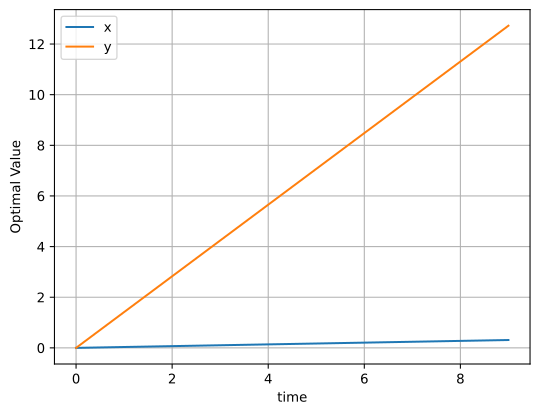
The figure above shows the optimal values of x(t) and y(t).
Varying lower and upper bounds#
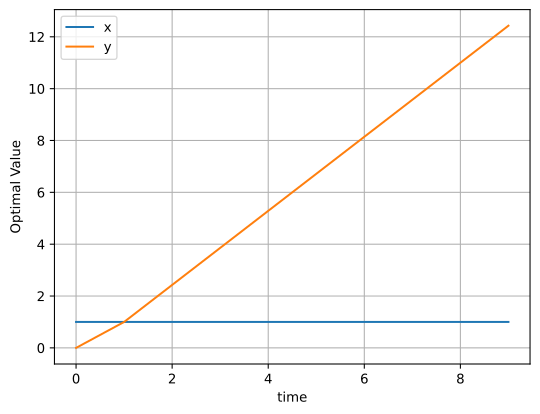
Now, let’s say we want to set the lower bound of x(t) to 1. This would translate to:
[3]:
x.lower = 1
Note
The same could have been achieved by calling m.variables.x.lower = 1
Let’s solve it again!
[4]:
m.solve(solver_name="highs", output_flag=False)
sol = m.solution.to_dataframe()
sol.plot(grid=True, ylabel="Optimal Value")
[4]:
<Axes: xlabel='time', ylabel='Optimal Value'>
[5]:
sol
[5]:
| x | y | |
|---|---|---|
| time | ||
| 0 | 1.0 | 0.000000 |
| 1 | 1.0 | 1.000000 |
| 2 | 1.0 | 2.428571 |
| 3 | 1.0 | 3.857143 |
| 4 | 1.0 | 5.285714 |
| 5 | 1.0 | 6.714286 |
| 6 | 1.0 | 8.142857 |
| 7 | 1.0 | 9.571429 |
| 8 | 1.0 | 11.000000 |
| 9 | 1.0 | 12.428571 |
We see that the new lower bound of x is binding across all time steps.
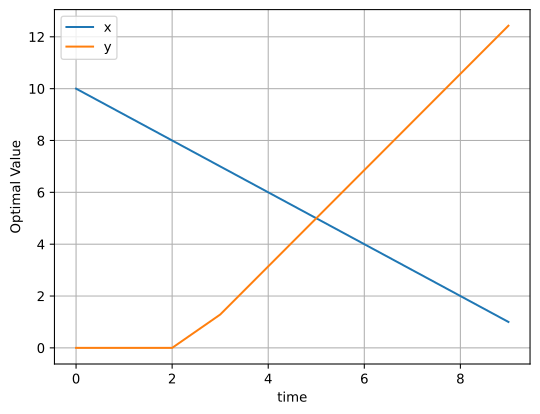
Of course the implementation is flexible over the dimensions, so we can pass non-scalar values:
[6]:
x.lower = xr.DataArray(range(10, 0, -1), coords=(time,))
[7]:
m.solve(solver_name="highs", output_flag=False)
sol = m.solution.to_dataframe()
sol.plot(grid=True, ylabel="Optimal Value")
[7]:
<Axes: xlabel='time', ylabel='Optimal Value'>
You can manipulate the upper bound of a variable in the same way.
Varying Constraints#
A similar functionality is implemented for constraints. Here we can modify the left-hand-side, the sign and the right-hand-side.
Assume we want to relax the right-hand-side of the first constraint con1 to 8 * factor. This would translate to:
[8]:
con1.rhs = 8 * factor
Note
The same could have been achieved by calling m.constraints.con1.rhs = 8 * factor
Let’s solve it again!
[9]:
m.solve(solver_name="highs", output_flag=False)
sol = m.solution.to_dataframe()
sol.plot(grid=True, ylabel="Optimal Value")
[9]:
<Axes: xlabel='time', ylabel='Optimal Value'>
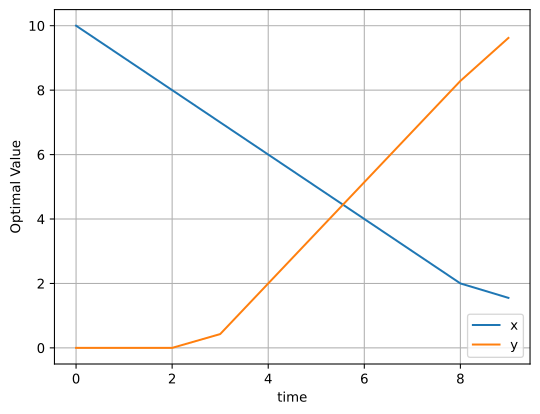
In contrast to previous figure, we now see that the optimal value of y does not reach values above 10 in the end.
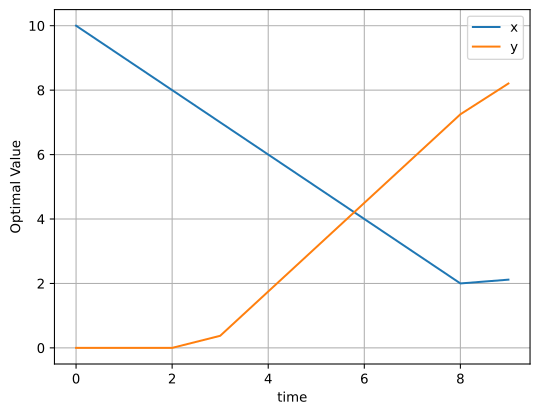
In the same way, we can modify the left-hand-side. Assume we want to weight y with a coefficient of 8 in the constraints, this gives
[10]:
con1.lhs = 3 * x + 8 * y
Note: The same could have been achieved by calling
m.constraints['con1'].lhs = 3 * x + 8 * y
which leads to
[11]:
m.solve(solver_name="highs", output_flag=False)
sol = m.solution.to_dataframe()
sol.plot(grid=True, ylabel="Optimal Value")
[11]:
<Axes: xlabel='time', ylabel='Optimal Value'>
Varying the objective#
Varying the objective happens in the same way as for the left-hand-side of the constraint as it is a linear expression too. Note, when passing an unstacked linear expression, i.e. an expression with more than the _term dimension, linopy will automatically stack it.
So assume, we would like to modify the weight of y in the objective function, this translates to:
[12]:
m.objective = x + 3 * y
[13]:
m.solve(solver_name="highs", output_flag=False)
sol = m.solution.to_dataframe()
sol.plot(grid=True, ylabel="Optimal Value")
[13]:
<Axes: xlabel='time', ylabel='Optimal Value'>
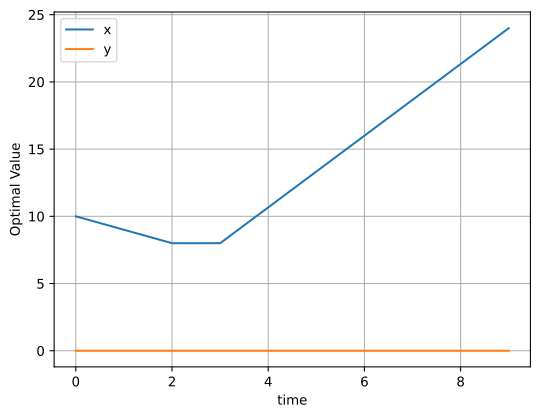
As a consequence, y stays at zero for all time steps.
[14]:
m.objective
[14]:
Objective:
----------
LinearExpression: +1 x[0] + 3 y[0] + 1 x[1] ... +3 y[8] + 1 x[9] + 3 y[9]
Sense: min
Value: 139.0
Fixing Variables and Extracting MILP Duals#
A common workflow in mixed-integer programming is to solve the MILP, then fix the integer/binary variables to their optimal values and re-solve as an LP to obtain dual values (shadow prices).
Let’s extend our model with a binary variable z that activates an additional capacity constraint on x.
[15]:
z = m.add_variables(binary=True, coords=[time], name="z")

# x can only exceed 5 when z is active: x <= 5 + 100 * z
m.add_constraints(x <= 5 + 100 * z, name="capacity")

# Penalize activation of z in the objective
m.objective = x + 3 * y + 10 * z

m.solve(solver_name="highs", output_flag=False)
[15]:
('ok', 'optimal')
Now fix the binary variable z to its optimal values and relax its integrality. This converts the model into an LP, which allows us to extract dual values.
[16]:
m.variables.binaries.fix()
m.variables.binaries.relax()
m.solve(solver_name="highs", output_flag=False)

# Dual values are now available on the constraints
m.constraints["con1"].dual
[16]:
<xarray.DataArray 'dual' (time: 10)> Size: 80B
array([-0.        , -0.        , -0.        ,  0.33333333,  0.33333333,
        0.375     ,  0.375     ,  0.375     ,  0.375     ,  0.375     ])
Coordinates:
* time (time) int64 80B 0 1 2 3 4 5 6 7 8 9Calling unfix() on all variables removes the fix constraints and unrelax() restores the integrality of z.
[17]:
m.variables.unfix()
m.variables.unrelax()

# z is binary again
m.variables["z"].attrs["binary"]
[17]:
True